
 0
0
 0
0
If your Mint Mobile hotspot isn’t working, it could be due to several reasons. Make certain you’ve activated the hotspot in your settings and that you haven’t exceeded your data limit. Check your signal strength and try restarting your device. Toggling Airplane Mode can also help reset your connectivity. Finally, verify your software is up-to-date. If you need more tips to troubleshoot effectively, there are additional steps you can take to resolve your hotspot issues.
Common Reasons for Hotspot Issues
When you’re trying to connect to your Mint Mobile hotspot, several common issues might be causing problems.
First, make sure your mobile hotspot is activated in the settings; it needs to be turned on for devices to connect.
Ensure your mobile hotspot is activated in the settings to allow devices to connect properly.
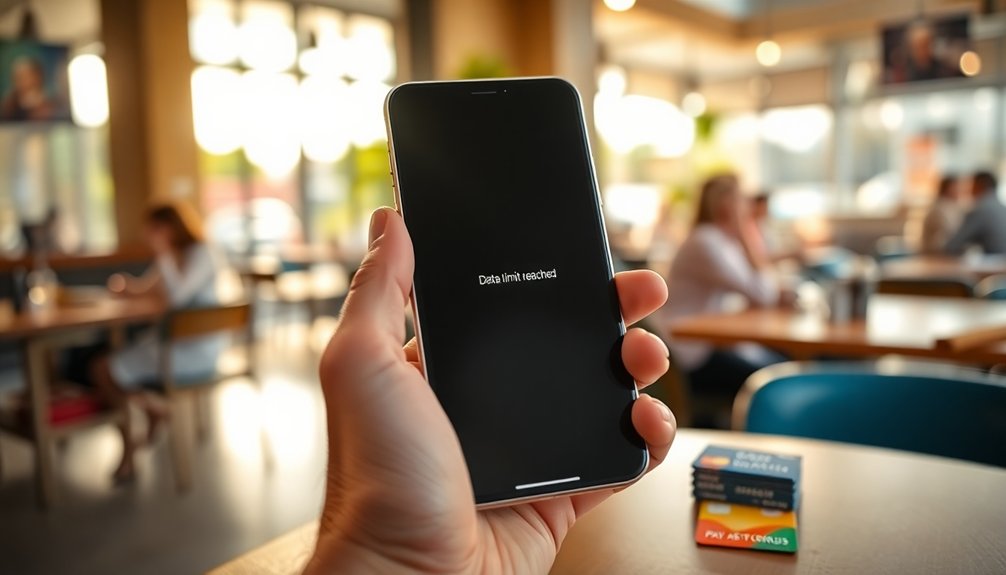
Next, check if you’ve exceeded your monthly data limit, as hotspot functionality relies on your available hotspot data.
If airplane mode is enabled, it can block the hotspot, so be certain to disable it.
Additionally, weak signal strength can impact connectivity.
Restarting your device to reset network settings often resolves temporary issues.
If you’re on an Unlimited plan, keep in mind that hotspot data is limited to 10GB before speed throttling occurs, which can also affect your connection. It’s also important to monitor due dates for payments to ensure you maintain uninterrupted service.
Checking Your Data Usage
How do you keep track of your data usage on Mint Mobile? It’s essential to monitor your data usage, especially if you rely on the mobile hotspot feature.
You can use the Mint Mobile app for real-time tracking and receive alerts as you approach your data limit. On an iPhone, go to Settings > Cellular > Cellular Data to view total data consumption. For Android, check Settings > Network & Internet > Data usage. Utilizing budget apps can help you stay within your data limits by promoting financial awareness and disciplined spending habits.
Restarting Your Device
If you’re dealing with mobile hotspot issues, restarting your device can be a simple yet effective solution. A quick restart often resolves connectivity issues and refreshes your network settings, restoring mobile hotspot functionality.
For iOS devices, slide the power off slider and wait a few seconds before turning it back on. On Android, hold the power button and select the restart option to refresh the system and clear any temporary glitches.
Regularly restarting your device not only helps with network connectivity but can also improve overall performance. Additionally, it’s important to stay up-to-date with billing trends to enhance efficiency in your device’s performance. So, the next time your hotspot isn’t working, try a restart first—it might just be the fix you need to get back online seamlessly.
Toggling Airplane Mode
If you’re facing issues with your Mint Mobile hotspot, toggling Airplane Mode might help. This simple action resets your device’s network connectivity by temporarily disabling all wireless connections. After a few seconds, turn it off and reconnect to your hotspot to check if the problem’s resolved. Additionally, ensuring that you receive timely reminders for your bill payments can help maintain uninterrupted service.
Resetting Network Connectivity
Toggling Airplane Mode is a simple yet effective way to reset your network connectivity and tackle issues with your mobile hotspot. By temporarily disabling all wireless signals, this quick troubleshooting step can help refresh the connection on your device.
For both iOS and Android, you can easily access Airplane Mode by swiping down from the notification area and tapping the airplane icon. Once you toggle it on, wait a moment, then turn it off to re-establish your connection to the mobile network.
This method can resolve intermittent network issues that disrupt your hotspot functionality. Remember to verify Airplane Mode has been fully disabled after toggling it to get the best results for your mobile hotspot.
Enabling and Disabling Mode
To quickly resolve mobile hotspot issues, enabling and disabling Airplane Mode can be a game changer.
By toggling Airplane Mode, you can reset your network connectivity, which often resolves temporary glitches.
For Android devices, swipe down from the notification area and tap the airplane icon to disable it.
On iOS, swipe up from the bottom (or down from the top right corner on newer models) to access the same feature.
After you turn Airplane Mode on, wait a few seconds before re-enabling it. This brief pause allows your device to fully reset its network connections.
If your mobile hotspot isn’t working, try this simple method to disable and then re-enable your connections, and you might find everything back to normal.
Ensuring Software Is Up-To-Date
To keep your Mint Mobile hotspot running smoothly, make sure your device’s software is up-to-date.
Checking for updates is quick and can resolve connection issues by installing the latest bug fixes and enhancements.
Don’t overlook this step; it’s essential for both performance and security. Additionally, using expense management apps can help you track any related data usage effectively.
Check for Updates
How often do you think about updating your device’s software? It’s essential to check for updates regularly to guarantee your mobile hotspot works seamlessly.
Keeping your software up-to-date not only helps improve functionality but also addresses security vulnerabilities and enhances device compatibility.
For iPhone users, navigate to Settings > General > Software Update to check for updates. If you’re on Android, go to Settings > System > Advanced > System Update.
Installing the latest software update gives you access to important bug fixes that can resolve connectivity issues.
Don’t underestimate the power of these updates; they can make a significant difference in how well your mobile hotspot performs and keeps you connected.
Install Latest Version
Keeping your device updated is just one part of ensuring your mobile hotspot works effectively. Installing the latest version of your device’s software is essential for compatibility and performance improvements.
Here’s what you should do:
- For iPhones: Go to Settings > General > Software Update.
- For Android users: Navigate to Settings > System > System Update.
Regularly check for software updates to enhance connectivity. Don’t miss out on new features and security patches!
Failing to install the latest version can lead to issues with your mobile hotspot, making it important to stay on top of software updates.
Keep your device optimized, and enjoy reliable connectivity wherever you go!
Confirming Mobile Hotspot Settings
Before you can enjoy the benefits of your mobile hotspot, it’s essential to confirm that your settings are correct.
If you’re using an iPhone, go to Settings > Cellular Data > Personal Hotspot and make sure the hotspot is toggled ON. Don’t forget to enable the “Allow Others to Join” option so devices can connect.
For Android, check your settings by guiding yourself to Settings > Network & Internet > Hotspot & Tethering and verify the Wi-Fi Hotspot is ON. Additionally, verify that your hotspot name and password are set correctly.
Finally, remember that all Mint Mobile plans include mobile hotspot features, so double-check you haven’t exceeded your data limits for hotspot usage. Additionally, keeping track of your budgeting and expense tracking tools can help you manage your data usage effectively.
Coverage and Signal Strength
Once you’ve confirmed your mobile hotspot settings are correct, the next step is to evaluate the coverage and signal strength in your area. Strong coverage is essential for a reliable mobile hotspot experience.
Keep in mind the following factors that can affect your connection:
- Environmental factors like buildings or geographical barriers
- Network congestion impacting signal strength
- Fluctuating mobile signal leading to intermittent connectivity
- Prioritizing network settings to optimize hotspot performance
If your device shows weak signal strength, it can lead to frustrating interruptions. To improve your connection, consult coverage maps for your area and adjust your location if necessary. Regular reviews of savings and investments can also help you manage your mobile expenses more effectively.
Ensuring you have a strong signal will make a significant difference in your mobile hotspot’s effectiveness.
Purchasing Additional Hotspot Data
If you’re finding your mobile hotspot isn’t meeting your needs, purchasing additional hotspot data through the Mint Mobile app is a quick and effective solution.
With Unlimited plans, you have a default limit of 10GB before throttling occurs, so if you anticipate exceeding your monthly 5G/4G LTE allotment, it’s wise to act.
Simply navigate to the ‘Manage Plan’ section in the Mint Mobile app and follow the prompts to select your desired data package.
Once you’ve purchased additional hotspot data, it’ll be instantly added to your account, allowing you to continue sharing your internet connection without any interruptions.
This will help maintain your connection quality, especially after reaching 40GB of usage. Additionally, consider using expense tracking apps to manage your finances better as you utilize more mobile data for work.
Troubleshooting Network Settings
After securing additional hotspot data, you might still face connectivity issues. To troubleshoot network settings, try the following steps:
After getting extra hotspot data, you may still encounter connectivity problems. Here are helpful troubleshooting steps to resolve them.
- Reset your network settings (this will erase saved Wi-Fi networks and Bluetooth connections).
- Update device software to guarantee compatibility and fix hotspot functionality.
- Change network mode from automatic to manual selection for a more stable connection.
- Disable airplane mode to restore your network connectivity.
If you’re using an eSIM, turn it off and on to refresh the connection.
By following these tips, you can effectively troubleshoot your network settings and improve your hotspot experience. Additionally, ensuring timely reminders for bill payments can help prevent financial stress related to missed deadlines.
Don’t forget to verify hotspot functionality after making these changes to confirm everything’s running smoothly!
Conclusion
In the world of mobile connectivity, your hotspot is like a lifeline, keeping you connected when you need it most. If you’re facing issues, don’t fret—by checking data usage, restarting your device, or confirming settings, you can often get back on track. Remember, a little troubleshooting goes a long way. So, take a moment to assess your connection, and soon enough, you’ll be back to streaming and sharing without a hitch!