
 0
0
 0
0
If you can’t receive calls on Mint Mobile, start by checking your APN settings for proper configuration. Power cycle your device to refresh your network connection and reseat your SIM card for better connectivity. If using an eSIM, toggle it off and on. Make sure your device’s software is up to date and consider resetting network settings. If these steps don’t solve the issue, keep exploring other solutions that can help restore your call functionality.
Understanding Why You Can’t Receive Calls on Mint Mobile

When you’re unable to receive calls on Mint Mobile, it can be frustrating, especially if you rely on your phone for important communications.
One common issue is related to your SIM card. If your device is set to automatically select the wrong T-Mobile network option, it can disrupt call functionality. Additionally, weak coverage in your area or network outages can lead to reception problems.
Make sure airplane mode is off and check for a strong signal. If you’re still having trouble, reseating your SIM card or resetting your network settings might help. Affordable plans often utilize major carrier networks for reliable coverage, so ensure your device is compatible with the network frequency.
If the issue continues, don’t hesitate to reach out to Mint Mobile support for further assistance. They can provide solutions tailored to your situation.
Check Your APN Settings for Proper Configuration
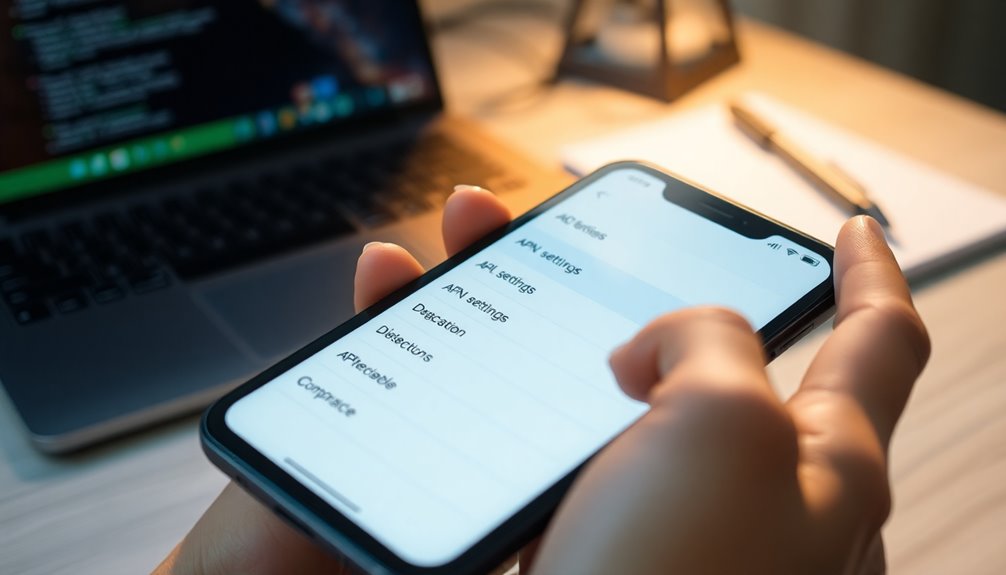
Checking your APN settings is essential for guaranteeing proper network connectivity on Mint Mobile. If you can’t receive calls, it might be due to misconfigured APN settings.
Here are a few steps to follow:
- Reference Mint Mobile’s recommended APN settings for accuracy.
- Verify your device saves new APN settings, as defaults can hinder calls.
- After updating, reboot your phone to apply the changes.
- Manually select the appropriate T-Mobile network option if your device auto-selects incorrectly.
Regularly check for updates from Mint Mobile regarding APN settings, as these can change with network optimizations. Properly configured APN settings can greatly enhance your call reception and overall connectivity, similar to how expense tracking tools help entrepreneurs maintain organized financial records.
Power Cycle Your Device: A Simple Fix

If you’re facing connectivity issues with your Mint Mobile service, power cycling your device might be the quick fix you need.
Just turn it off for about 30 seconds and then back on to refresh your network connection.
This simple step can often resolve problems like missed calls and help maintain peak performance. Additionally, utilizing expense tracking apps can help freelancers manage their finances effectively while ensuring they stay connected.
Restarting Your Device Benefits
A quick power cycle can work wonders for your device. Restarting your device benefits you in several ways, especially when you’re troubleshooting call functionality issues.
By power cycling your device, you can:
- Clear temporary glitches affecting call functionality
- Re-establish a connection with the cellular network
- Refresh memory and network settings for better performance
- Prevent future issues with call reception and connectivity
This simple step takes less than a minute and requires no technical expertise.
Regularly restarting your device not only resolves current problems but also enhances overall performance.
Follow Power Cycling Steps
Power cycling your device can be a straightforward yet effective way to resolve call issues on Mint Mobile. To do this, simply turn off your device and wait for about 30 seconds before turning it back on. This refreshes your network connection and often fixes temporary glitches preventing you from receiving calls.
Before you power cycle, make certain airplane mode is disabled, as it can disrupt connectivity. After powering up, check if the issue persists. If it does, consider reseating your SIM card or verifying your APN settings.
Regularly power cycling your device can also help maintain peak performance and guarantee your Mint Mobile service runs smoothly. Give it a try; it might just be the fix you need!
Reseat Your SIM Card to Re-establish Connection
When your Mint Mobile connection falters, reseating your SIM card can often restore service quickly and effectively. To do this, follow these steps:
- Power off your device for at least 30 seconds to reset it.
- Remove the SIM card tray and carefully take out the SIM card.
- Inspect the SIM card for any damage or dirt; clean it gently with a soft cloth if needed.
- Reinsert the SIM card securely into the tray before powering your device back on.
After reseating your SIM card, check for signal strength. If you still can’t receive calls, try testing the SIM in another accessible device to rule out any issues with the card itself. Additionally, ensure that your payment terms are clear to avoid service interruptions due to billing issues, as clear payment terms can help maintain uninterrupted service.
Turn Off and On Your Mint Mobile eSIM
After reseating your SIM card, another effective way to troubleshoot your Mint Mobile connection is by turning off and on your eSIM.
Start by going to your device’s settings and selecting “Cellular” or “Mobile Data.” Toggle the eSIM off and wait for about 10 seconds to refresh the connection with the network.
Make sure your device isn’t in airplane mode, as this will block any cellular service, including call reception.
Once you re-enable the eSIM, check for a signal indicator to confirm that you’re reconnected to the Mint Mobile network. Additionally, keeping track of your upcoming expenses can help ensure you’re not missing any important payments that could affect your service.
If you still can’t receive calls, consider additional troubleshooting steps or reach out to Mint Mobile support for assistance while ensuring your Mint Mobile Privacy is protected.
Verify Coverage in Your Area Using the Coverage Map
A reliable connection relies heavily on network coverage, so it’s crucial to verify the coverage in your area using Mint Mobile’s coverage map. This tool helps you understand signal strength, which can impact your ability to receive calls.
- Identify areas with strong, moderate, and weak signals.
- Spot potential dead zones that might affect your reception.
- Confirm your device is compatible with Mint Mobile’s network frequencies.
- Regularly check for updates, as network improvements can enhance service.
Budgeting apps can also help you manage expenses related to your mobile plan, enabling you to track expenses effectively.
If you’re in a rural area, remember coverage may be limited compared to urban settings.
Ensure Airplane Mode Is Disabled on Your Device
Before troubleshooting further, check if airplane mode is disabled on your device.
Look for the airplane icon in your status bar; if it’s active, you’ll need to turn it off.
Once you’ve made this change, consider restarting your device to guarantee a proper connection to the network. Regular checks of your water meter can also help identify any potential issues with service interruptions.
Verify Airplane Mode Status
Have you checked whether airplane mode is disabled on your device? Airplane mode disables all wireless communication, preventing you from receiving calls on your Mint Mobile device.
To verify you’re connected, look for the airplane icon in your status bar. If it’s there, airplane mode is active. You can easily disable it by:
- Swiping down from the top of your screen and tapping the airplane icon
- Accessing the settings menu
- Checking your device settings regularly
- Making it a habit to verify before troubleshooting
If airplane mode was previously enabled, toggling it off might help re-establish your connection to the Mint Mobile network for incoming calls.
Always double-check this setting as it’s a common oversight.
Restart Device After Changes
Restarting your device after making changes to network settings, like disabling airplane mode, is essential for guaranteeing those updates take effect. This simple step can clear temporary glitches that might be affecting call reception.
If you’ve adjusted APN settings or reseated your SIM card, you should definitely restart your device after changes. It refreshes your connection to the Mint Mobile network, allowing it to recognize the new configurations.
If you’re still having trouble receiving calls, it might be a good idea to check out our Mint coverage map to verify you’re in an area with adequate signal strength.
Signal Strength Check Needed
To guarantee you’re receiving calls without interruption, make certain Airplane Mode is turned off on your device, as this setting blocks all wireless communications.
A signal strength check is needed to confirm you’re connected properly, especially since Mint uses T-Mobile’s network.
- Look for signal bars in the status bar; low or absent bars indicate poor coverage.
- Test your device in different locations to identify if specific areas have weak reception.
- Disable Wi-Fi calling, as it can disrupt cellular calls when signals are weak.
- Confirm your device is set to the correct network mode for ideal connectivity.
Update Your Device’s Software to the Latest Version
Updating your device’s software to the latest version is vital for maintaining ideal performance and connectivity with the Mint Mobile network.
When you update your device’s software to the latest version, you guarantee compatibility with network settings and resolve bugs that might interfere with call reception.
Regular updates often bring improvements to connectivity features, enhancing your device’s ability to maintain a stable connection.
Regular software updates enhance connectivity features, ensuring your device maintains a reliable and stable connection.
Many manufacturers release important security patches and performance enhancements through these updates, addressing issues related to call functionality.
Make it a habit to check for software updates periodically, as they can be essential for fixing known issues. Additionally, keeping your software current can help you avoid unnecessary late fees or penalties that may arise from missed calls or connectivity issues.
Reset Network Settings for a Fresh Start
If you’re experiencing ongoing connectivity issues with your Mint Mobile service, resetting your network settings can provide a fresh start.
This process restores your device’s network configuration to its default state, which may resolve problems with receiving calls. Here’s how to do it:
- Navigate to your device’s settings menu
- Select “General Management” or “System”
- Choose “Reset” followed by “Reset Network Settings”
- Restart your device to guarantee changes take effect
Keep in mind that resetting network settings will erase saved Wi-Fi networks, Bluetooth connections, and APN settings.
You’ll need to re-enter this information afterward. If issues persist, consider re-seating your SIM card or contacting Mint Mobile support for further assistance. Additionally, you might find it helpful to look into Always Incontinence Pads Free Samples to ensure you have the necessary supplies while troubleshooting.
Explore the Wi-Fi Calling Feature for Better Connectivity
After resetting your network settings, you might want to explore the Wi-Fi Calling feature for better connectivity. This option lets you make and receive calls over a Wi-Fi network, which can be a game-changer in areas with weak cellular signals, like buildings or rural locations. To enable Wi-Fi Calling, go to your phone settings, select “Calls,” and toggle the Wi-Fi Calling option on. Your phone will automatically switch between Wi-Fi and cellular networks based on which offers a stronger connection. Just make sure your Wi-Fi network is stable and has enough bandwidth to support clear voice calls without interruptions. This feature can greatly enhance your calling experience when cellular coverage isn’t ideal. Additionally, keeping your device software up-to-date ensures compatibility and optimal performance of the Wi-Fi Calling feature.
When to Contact Mint Mobile Support for Further Assistance?
Wondering when it’s time to reach out to Mint Mobile support? If you’ve tried basic troubleshooting steps and still can’t receive calls, it’s definitely time to contact Mint Mobile support.
Here are some scenarios to evaluate:
- You notice persistent call issues despite correct APN settings.
- Your customer service ticket hasn’t been resolved for a while.
- You lose call functionality after changing network modes.
- You encounter error messages or ongoing connectivity problems.
In these cases, contacting Mint Mobile support can provide the assistance you need to identify and resolve your issues effectively.
Don’t hesitate to reach out; their support team is there to help you get back to seamless calling.
Conclusion
To sum up, if you can’t receive calls on Mint Mobile, don’t panic! Try the steps we’ve outlined to troubleshoot the issue. Did you know that over 70% of mobile call problems can be fixed with simple adjustments like checking your APN settings or reseating your SIM card? If these solutions don’t work, reaching out to Mint Mobile support might be your best bet. Stay connected, and you’ll be back to receiving calls in no time!